
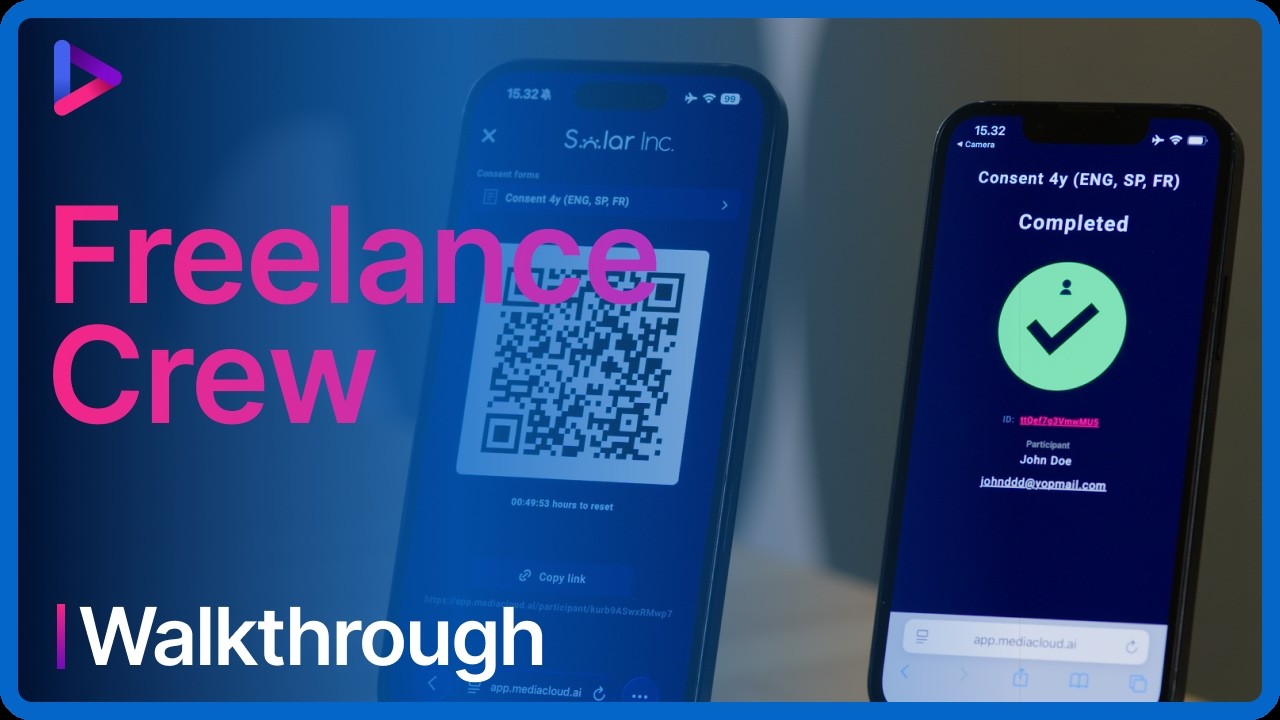
Release forms are the documents people sign to give permission to appear in your photos or videos. If a client has asked you to deliver source footage through Mediacloud.ai, this guide covers everything you need. It explains what the platform is and what to set up before the shoot. Then it shows how to collect release forms on location and hand over the footage.
Key takeaways
- Sign up from the client's invite link and test the mobile login before the shoot
- No app is needed, as the QR generator runs in the browser
- A green check mark means registered, a yellow one means a minor
- Confirm delivery preferences with the client before uploading
- Tag participants in every clip before you save
What Mediacloud.ai does for your client
Mediacloud.ai serves two main purposes for companies and their marketing teams:
- A central cloud archive for source footage. A systematic way to store and organise footage from many crews and shoots in one searchable place. Think of it as a media asset management system, purpose-built for large high-res photo and video files.
- Built-in participant registration. Release forms and model contracts are handled with QR codes. Participants take a selfie and sign, and are then tagged in the uploaded footage. That creates a solid paper trail, so compliance and privacy concerns are handled with ease.
Working as a freelancer on someone else's footage has its own legal side too. Read Should Freelance Photographers sign a Data Processing Agreement? for that part.
Before you go on location
Your client has probably already sent you a unique Mediacloud.ai URL. It's an invite link that gives you access to a specific project in their account.
- Open the link on the photographer login page and sign up with your details. Do this on a computer, before the shoot.
- Log in on your phone with the same username and password. That confirms you have access to the QR code generator.
No app is required, as everything runs in the browser. Testing it beforehand means you know it works before you're on location with plenty of other things to worry about.
That's the main benefit for the crew: no more paper-based release forms and privacy paperwork. Crews are already overloaded during filming, so the idea is for Mediacloud.ai to do the heavy lifting.
If you manage the project yourself, the walkthrough for project managers covers the setup side.
Registering participants on location
The crew uses their phone as the QR code generator, and each participant uses their own phone.
On your phone: you'll see the client's project, with a dropdown if you've been added to several projects. You can tap to read each available consent form. At the bottom, you'll see the participants already signed up for the project.
To register someone new:
- Tap the QR code button and select the correct form. The code appears, with a countdown showing when it expires.
- The participant scans the code with their own phone and reads the consent text.
- They enter their name and email and take a selfie.
- They confirm the terms and conditions and swipe to sign.
A large green check mark tells you the participant is correctly registered. A yellow check mark means the participant is registered as a minor. Double check that the guardian's details have been filled in correctly. Our guide on handling consent from minors explains why this matters.
For what makes a release legally valid in the first place, see the UK data protection authority's guide on valid consent.
Handing over the footage
Before you upload, check with your client exactly how they want the footage delivered. They may want it sorted in a specific way, or with a base grade applied. Mediacloud.ai has a YouTube tutorial with uploading and sorting tips, and our guides on storing source footage and naming files and folders help too. Always confirm with the client first.
Then, from your freelancer login on a computer:
- Select the folder and pick the shoot date.
- Add the important metadata: location, photographer name and any notes the client will find useful.
- Drag and drop the files. Videos and images can go in the same upload.
- Once the files are uploaded and encoded, the list of participants for the project appears. Go through each clip and tag every participant who appears in it.
- When everything is tagged and correct, hit save in the upper right corner.
Mediacloud.ai then emails your client automatically to say the footage is uploaded, tagged and ready for review.
Frequently asked questions
Do I need to install an app to collect release forms?
No. The QR code generator runs in your phone's browser. Log in with the same username and password you created from the client's invite link.
What does a participant have to do to sign?
They scan the QR code with their own phone and read the consent text. Then they enter their name and email, take a selfie, accept the terms and swipe to sign. A green check mark confirms it worked.
What does the yellow check mark mean?
The participant is registered as a minor. Double check that the legal guardian's details have been filled in correctly.
How does the client know the footage is ready?
Once you upload, tag the participants and hit save. Mediacloud.ai then emails the client automatically that the footage is ready for review.
Working with a client on Mediacloud.ai?
Ask them for your project invite link, or see how Mediacloud.ai works.
Label variant
Body
Title variant
Body
Term
Definition
Question
Key risk: red variant
- List item