A model contract is a release where the participant is paid for appearing in your footage, so they can't simply opt out later. A release form is the standard consent people sign to be filmed. If you manage content projects and you're tired of chasing both, this walkthrough is for you. It covers setting up a project, registering participants on location and uploading footage, with your in-house team or a freelance photographer.
Key takeaways
- Pick the form type per project; the legal text is set once during onboarding
- Internal users get full access, freelancers only see the projects you invite them to
- Limit which forms freelancers can use, especially paid model contracts
- QR codes expire by design, so you generate a new one per session
- Review freelancer uploads before making a folder public
The four types of release forms and contracts
Before any project starts, you need to know what participants will actually sign on location, and which type of form fits each project. Mediacloud.ai works with four types, shown here on a demo account under Settings > Consent forms:
- Standard consent. A release form typically used to register all kinds of participants.
- Staff consent. Almost identical, with an extra paragraph on the relationship between employer and employee. For some companies this is very important to have.
- Model contract. A basic setup where a payment is made to the participant, which is useful because they can't opt out.
- External contract. For more complex arrangements, like an influencer or a professional model with a contract negotiated outside Mediacloud.ai.
The forms are typically set up during onboarding, with input from your legal team or privacy lawyers. After that, they rarely change. As a project manager or photographer, you don't need to worry about the legal text. You just need to know which type to pick for each project.
For the legal side of that choice, read Consent vs. Model Contracts: What's the Right Choice?. The UK's data protection authority also explains what makes consent valid.
What you can configure in each form
- Translations. Each form can have several languages that participants can choose from.
- Duration. Sets when the captured footage will expire and become inactive.
- QR code countdown. Sets how quickly each QR code expires. It's a security feature to prevent misuse, which is why you generate several QR codes per session.
Internal users vs. freelancers: who sees what
This is one of the most important things to understand about access.
Internal users are colleagues with their own account. They see all projects, browse folders and content, upload footage, change metadata and have full access to the data. On their phone, with the same login, they can generate QR codes for any project and pick any form they need on location. Back at the computer, they upload and browse from the main dashboard, including the list of participants they onboarded during filming.
Freelancers and external crew only get access to what you invite them to. In many cases they only need to upload or download footage from the projects you assign them. You can also limit which projects and forms they can use when they generate QR codes. Limiting the use of expensive model contracts often makes sense.
Setting up a new project
Go to Settings > Projects. Projects are split into two sections:
- Pending: active projects waiting for approval before they become public. For example, a project where a freelancer still has to upload and you want to review it first.
- Public: approved folders, visible on the main dashboard, where everyone can view and download the footage.
To create one, click the plus button and give it a name. The year is pre-selected, assuming you're filming something new. Then choose which form types are available for this project.
This is where limiting your options really matters. If a freelancer only needs a standard consent form for this shoot, there's no need to include a model contract with expensive payments. Keep it clean and simple for the external crew. The limit only applies to freelancers, as internal users still have access to every form in the system.
Next, choose the folder visibility. Release the folder to the public right away, or review and approve it manually once footage is uploaded. Save, and the project is created.
The popup that follows shows the project's invite URL. Email it to your freelance crew. They follow the link, create a limited-access account and from then on can only access that specific project. Nothing else in your archive is visible to them until you send more invite links.
You can always find the invite links again on the projects page, along with the number of assets and signed-up participants per folder. Wherever you see the info icon in the software, hover over it for an explanation.
Share our guide for freelance crew on release forms with external photographers before the shoot.
Registering participants on location with QR codes
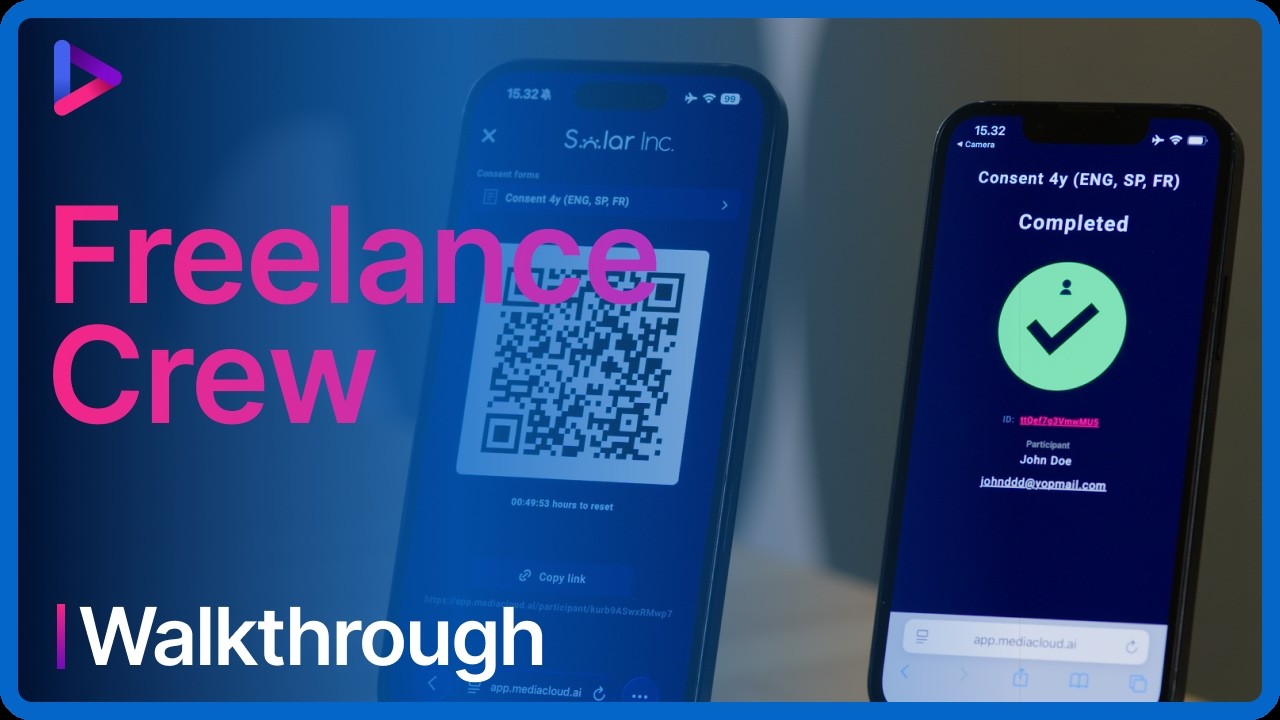
Both internal users and invited freelancers can open the QR code generator in a mobile browser. No app installation is needed.
On the crew's phone: select the project from the dropdown. Freelancers only see the projects they're invited to. The project view shows the company, who created the project, the available form types and the full text participants will see, including translations.
That makes it easy for the crew to check what people are signing. It also lists the participants already registered, a quick way to confirm everyone is in. Tap to generate a QR code, select the form, and the unique code appears with its countdown. In rare cases you can copy the code and text or email it to someone.
On each participant's phone: several participants can register at the same time, each on their own phone, which makes life easier for a busy crew. They scan the code, read the legal text and pick a language if needed. Then they enter their name and email, take a selfie, accept the terms and swipe to confirm.
A big green check mark confirms the participant is fully registered. If someone is under the age threshold in your company's policy, extra fields appear for a parent or legal guardian to sign. The crew then sees a yellow check mark instead. Our guide on handling consent from minors covers this in more detail.
Uploading footage after the shoot
Footage is uploaded from a computer, and there are two routes depending on who uploads.
Internal users use the standard upload in the main dashboard when the project is public. Pick the shoot date, select the folder, add optional metadata and drag and drop the files. Videos and stills can go in the same upload.
Freelancers follow the same flow with limited access. They only see their assigned projects, never the rest of your archive. After uploading, they tag the participants in each clip and hit save to complete the handover. That sends a notification email to the account manager saying the freelancer has completed the project.
Reviewing and approving freelancer uploads
This approval step is useful when the in-house team wants to review footage before it's released for use. On the projects page, pending projects show a review button with the uploaded assets and participants.
Browse the assets with the arrows and make changes with the edit button. When everything looks right, make the folder public so it appears on the main dashboard. More answers on uploads and file types are in our Technical FAQ, and the Legal Framework explains how the consent workflow is built.
Frequently asked questions
What's the difference between a consent form and a model contract?
A consent form registers participants without payment, and consent can be withdrawn. A model contract involves a payment to the participant, so they can't opt out. Staff consent and external contracts cover employees and externally negotiated deals like influencers.
Do project managers need to write the legal text of each form?
No. The forms are set up during onboarding with input from your legal team or privacy lawyers, and rarely change. Project managers only pick the right form type for each project.
Can freelancers see the rest of our footage archive?
No. Freelancers only access the projects they're invited to through a project link. You can also limit which forms they can use, for example leaving out paid model contracts.
What happens when a participant is a minor?
If the participant is under the age threshold in your company's policy, extra fields appear for a parent or legal guardian to sign. The crew sees a yellow check mark instead of a green one.
See the workflow in your own account
Want to run your next shoot without chasing paper forms? Book a demo of Mediacloud.ai.
Label variant
Body
Title variant
Body
Term
Definition
Question
Key risk: red variant
- List item